Header functions
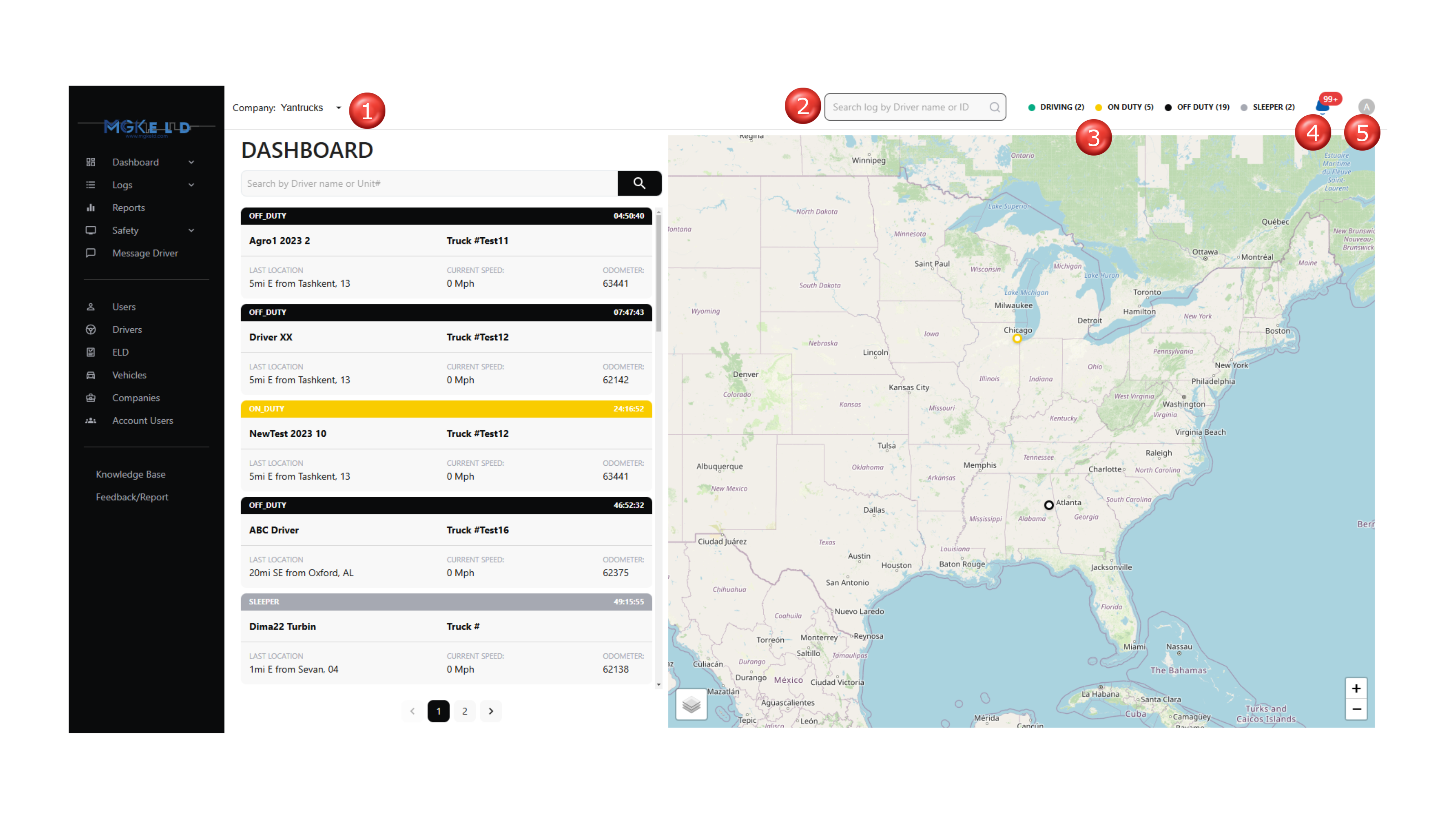
The header section of the Web App portal provides users with essential navigation and management features. Below are the key functionalities:
1. Switch Between Companies (For Resellers Only)
- Users with reseller access can switch between different companies using the Company Selector dropdown.
- (See label 🔴 1 in the screenshot.)
2. Search Driver Logs
- Use the search bar to quickly find a driver's logs by entering their name or ID.
- This helps in monitoring driver activities efficiently.
- (See label 🔴 2 in the screenshot.)
3. View Driver Status Overview
- The driver status panel displays the number of drivers in each category:
- Driving (Green)
- On Duty (Yellow)
- Off Duty (Black)
- Sleeper (Blue)
- This helps dispatchers quickly understand the real-time status of drivers.
- (See label 🔴 3 in the screenshot.)
4. Manage Notifications
- The bell icon (🔔) provides alerts about important updates, such as driver status changes or system messages.
- Click to view and manage notifications.
- (See label 🔴 4 in the screenshot.)
5. Access the User Profile Menu
The user profile dropdown menu provides the following options:
- User Profile – Allows users to update personal information.
- Company Profile – Visible only to Account Admin and Company Owner roles.
- Logout – Sign out of the portal.
- (See label 🔴 5 in the screenshot.)